

Once your data is in Caplena, uploaded manually or via integration (Google, Amazon, Qualtrics, API, etc.), you’re ready to start your analysis.Documentation Index
Fetch the complete documentation index at: https://docs.caplena.com/llms.txt
Use this file to discover all available pages before exploring further.
Overview panel
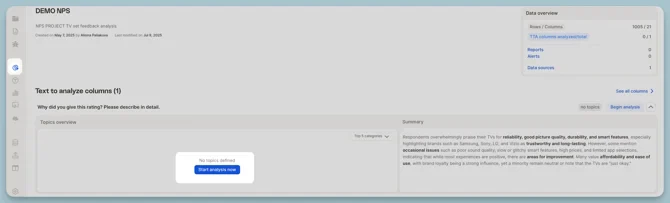
When you open your project, you’ll land on the Overview panel, where you can see the question designated for analysis and an AI-generated summary of key themes. Click “Start analysis now” to begin.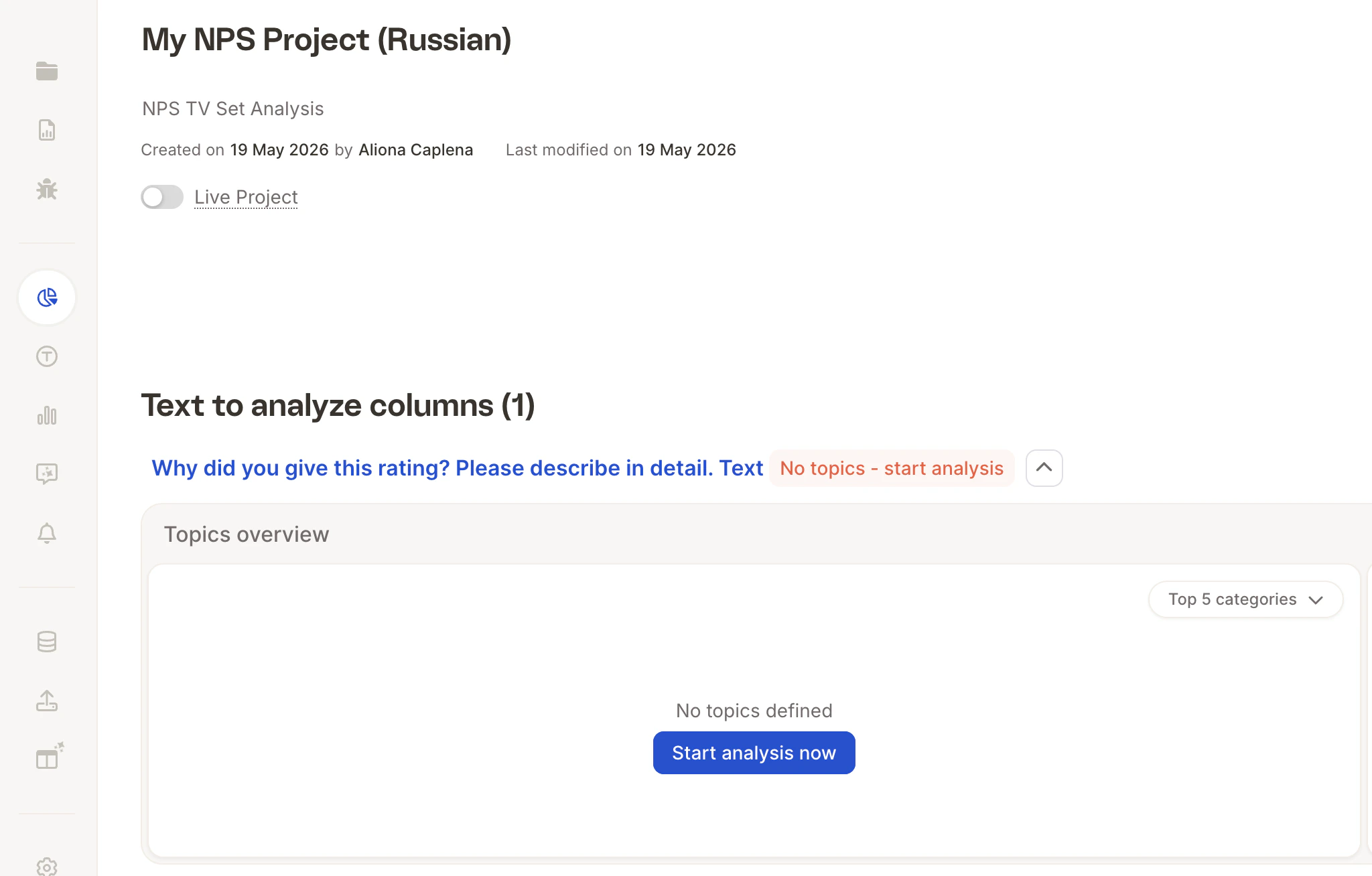
Step 1: Choose how to start
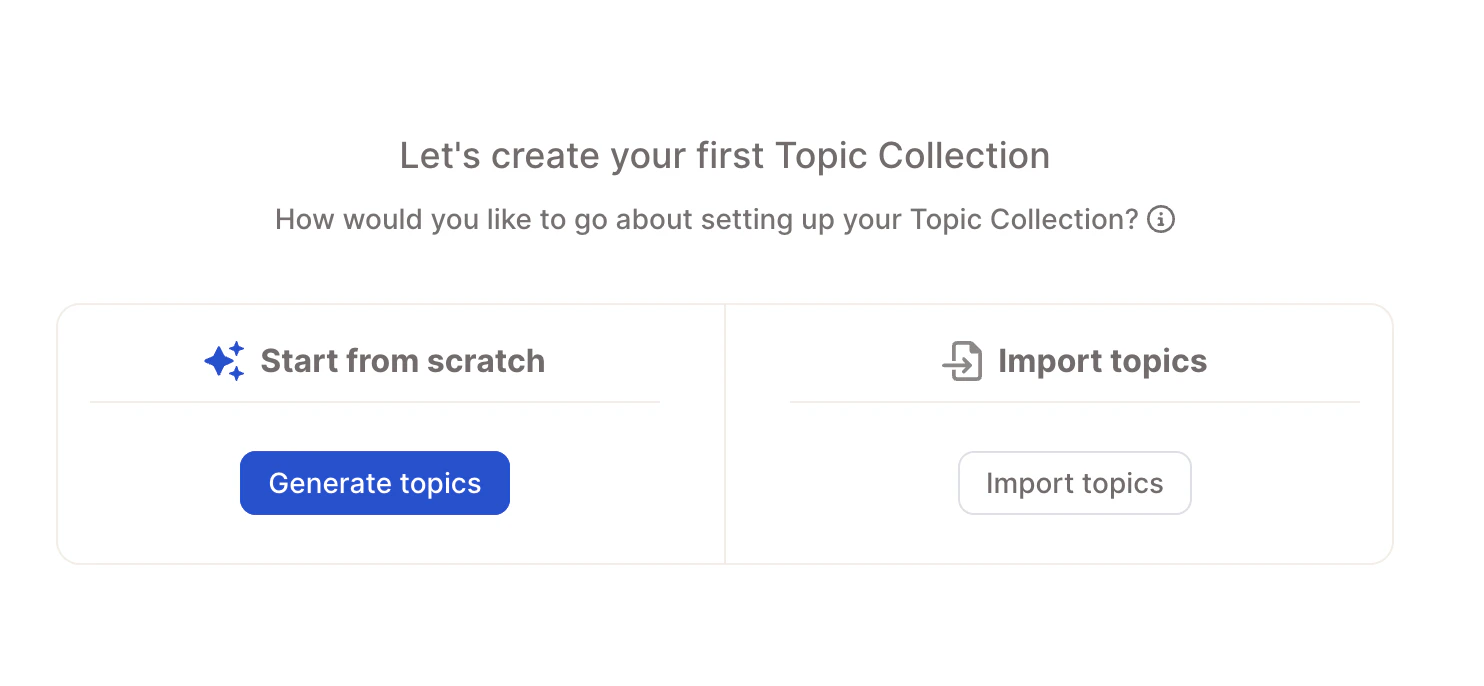
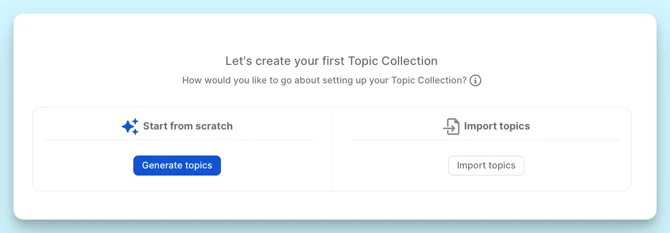
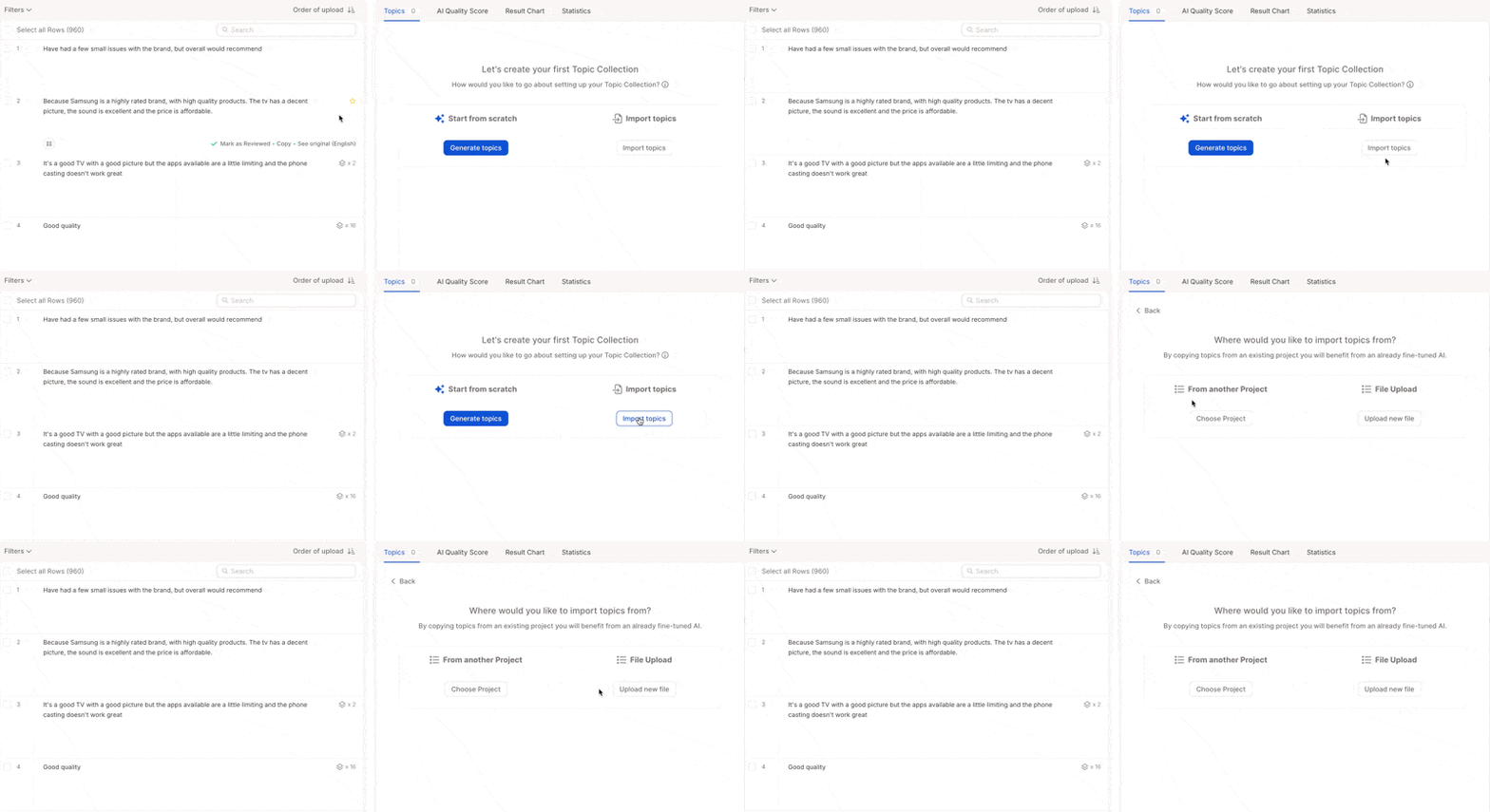
- Other project - Choose a previous project, select the relevant text column, and click “Inherit topic collection”. Ideal for recurring surveys (e.g. quarterly NPS, monthly product feedback) where consistency across waves matters.
-
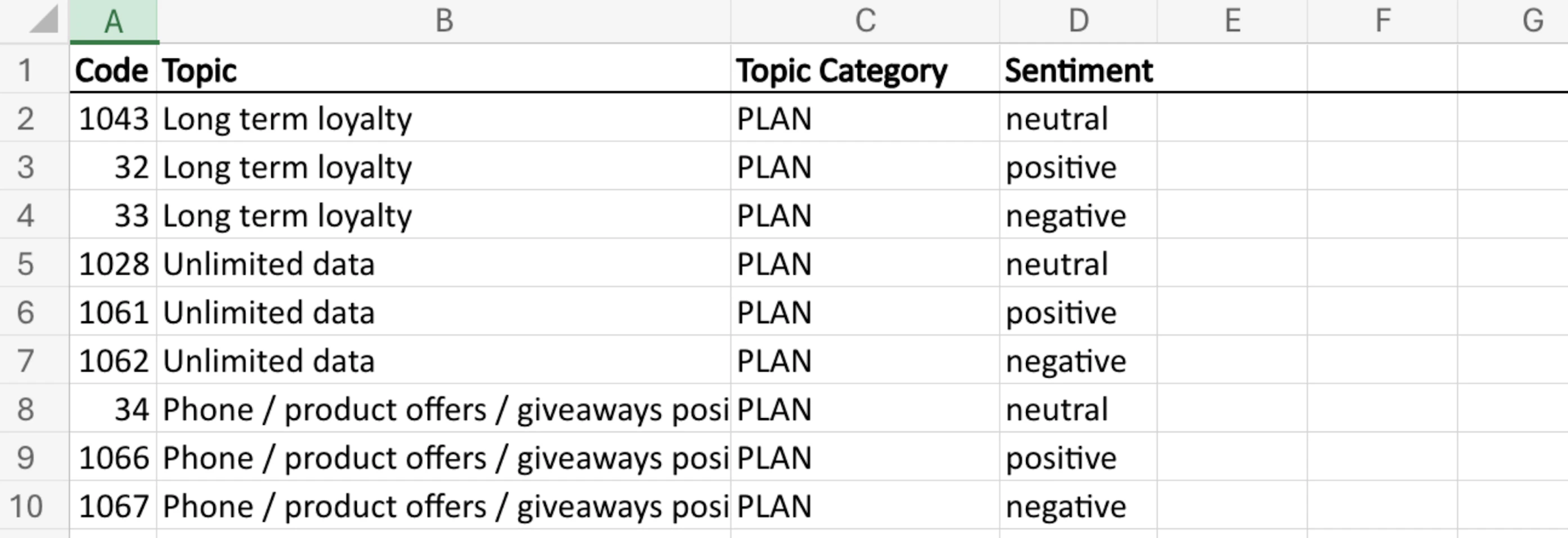
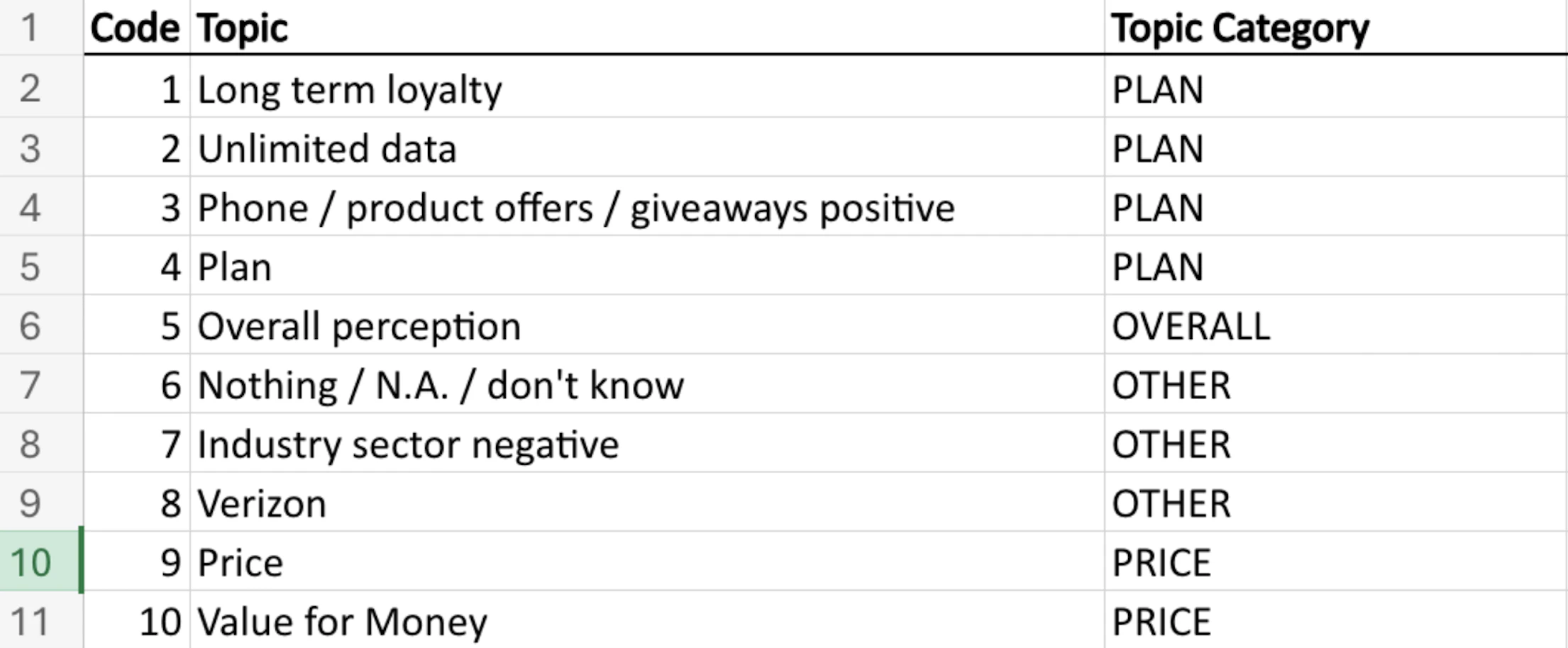
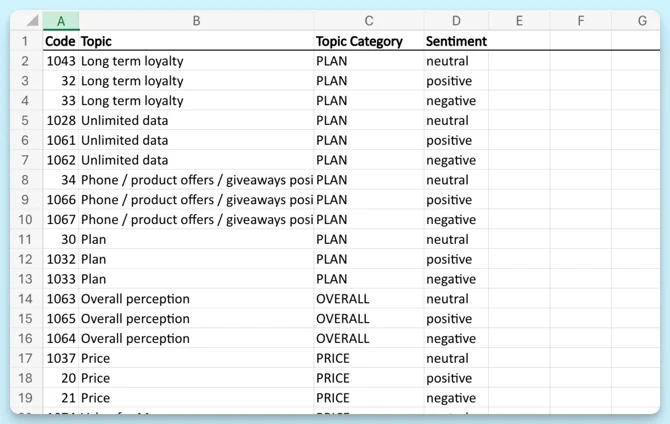
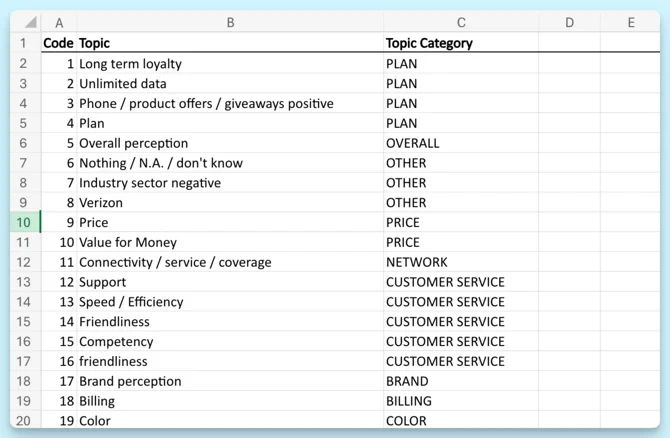
Upload File - Import your own Excel-based topic collection. Your file must match one of these formats.
With sentiment:
Without sentiment:
Step 2: Enable sentiment (optional)
Sentiment detection classifies the emotional tone of each response as positive, neutral, or negative. When enabled, a topic like Customer service splits into Customer service – positive and Customer service – negative, so you can see not just what people mention but how they feel about it.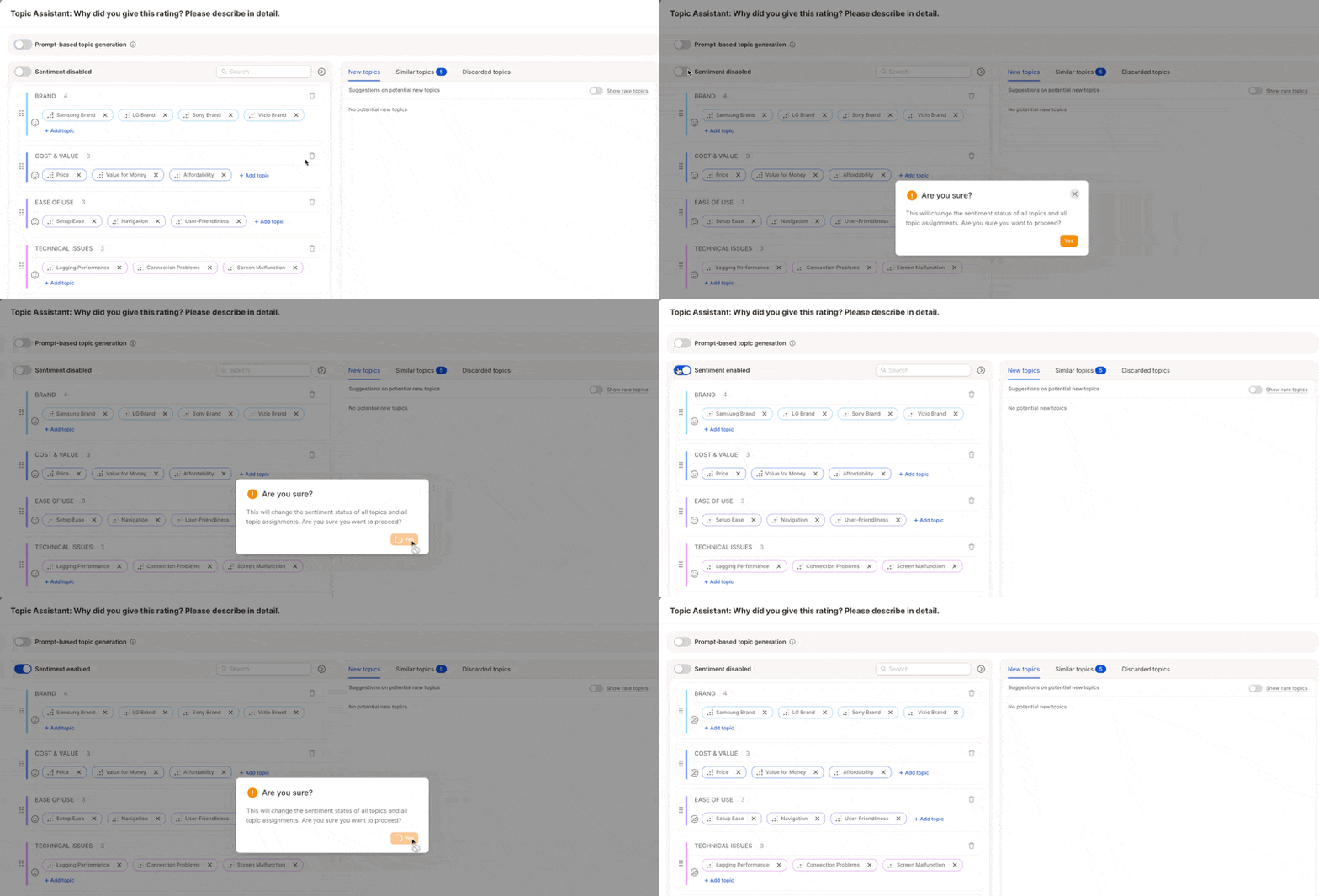
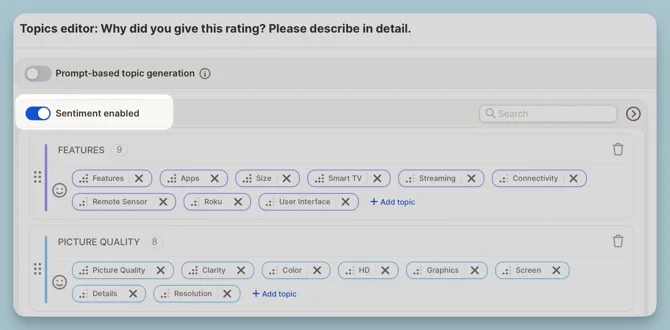
“The support team was incredibly helpful.” → Customer Service – Positive “Waiting times were terrible.” → Customer Service – NegativeSkip it if your data is factual — feature requests, improvement suggestions, etc.:
“Add a dark mode option.” → No sentiment needed “Please include PDF export in the next update.” → No sentiment needed
Step 3: Generate topics
Caplena generates a MECE topic collection, mutually exclusive and collectively exhaustive, so topics cover all relevant feedback without overlap.
Initial topic collection
The AI generates a draft collection of 20–60 topics grouped into categories, based on up to 20,000 rows of your data plus your project name, description, and question context. Each topic includes an auto-generated description you can edit.
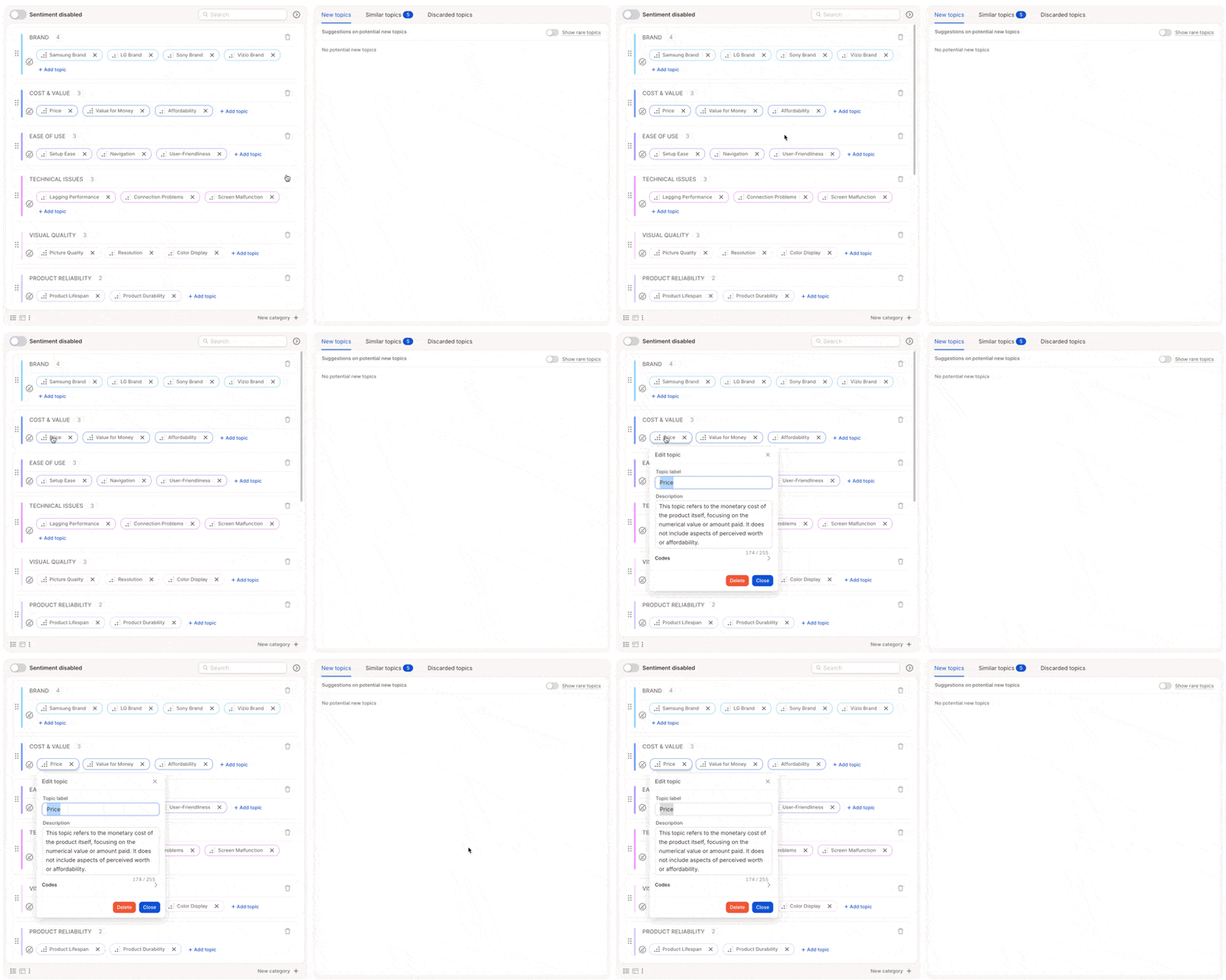
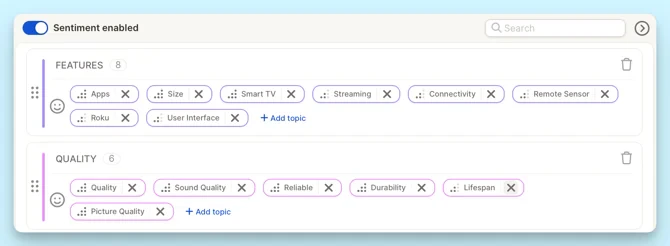
- Rare topics - not included by default, but available to browse and add manually
- Similar topics - flagged for potential merging or removal

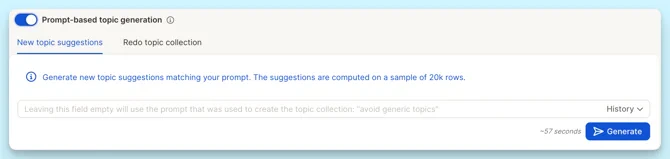
| Mode | What it does |
|---|---|
| Regenerate full collection | Rewrites the entire topic collection from scratch based on your prompt. |
| Generate new suggestions | Adds new suggestions on top of your existing collection without changing it. |