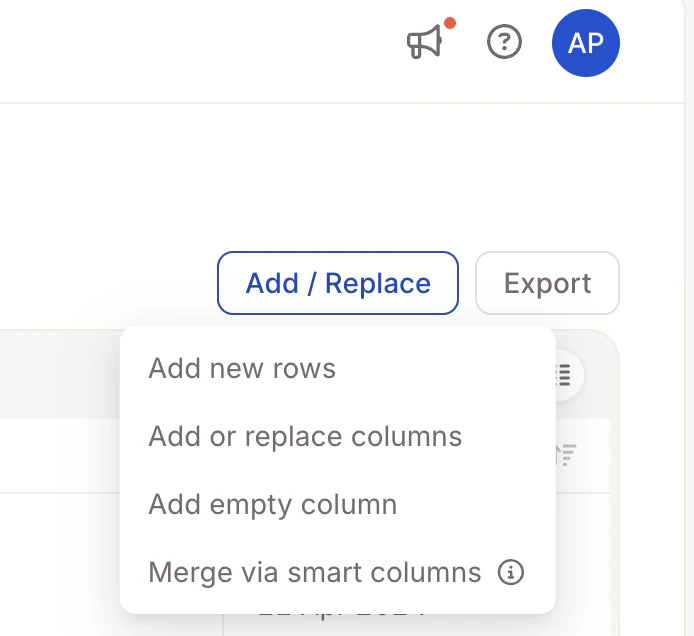
The Data Tab is where you view, clean, and manage your dataset in Caplena. Whether you are preparing data for analysis, fixing errors, or customizing the table view, you stay in control without re-uploading files.Documentation Index
Fetch the complete documentation index at: https://docs.caplena.com/llms.txt
Use this file to discover all available pages before exploring further.
Accessing the Data Tab
To get started, click on Data in the sidebar. You’ll see an interactive table showing the data you uploaded.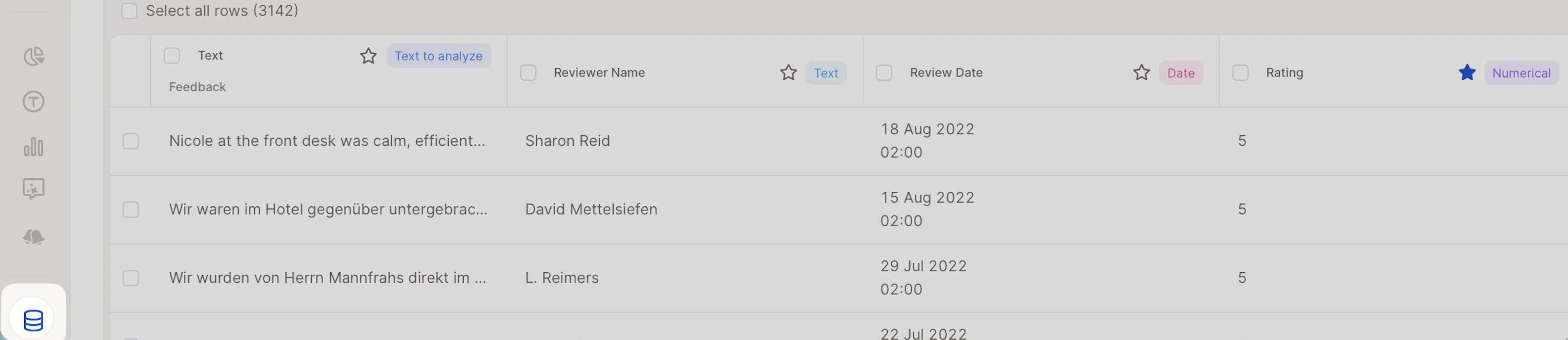
- Toolbar – Filter, edit, and customize your dataset
- Table View – See rows (responses) and columns (data fields)
- Checkboxes – Select rows for bulk actions
Viewing column details
To inspect a column’s full data profile, click on any column header. A Column Details panel will open with two sections.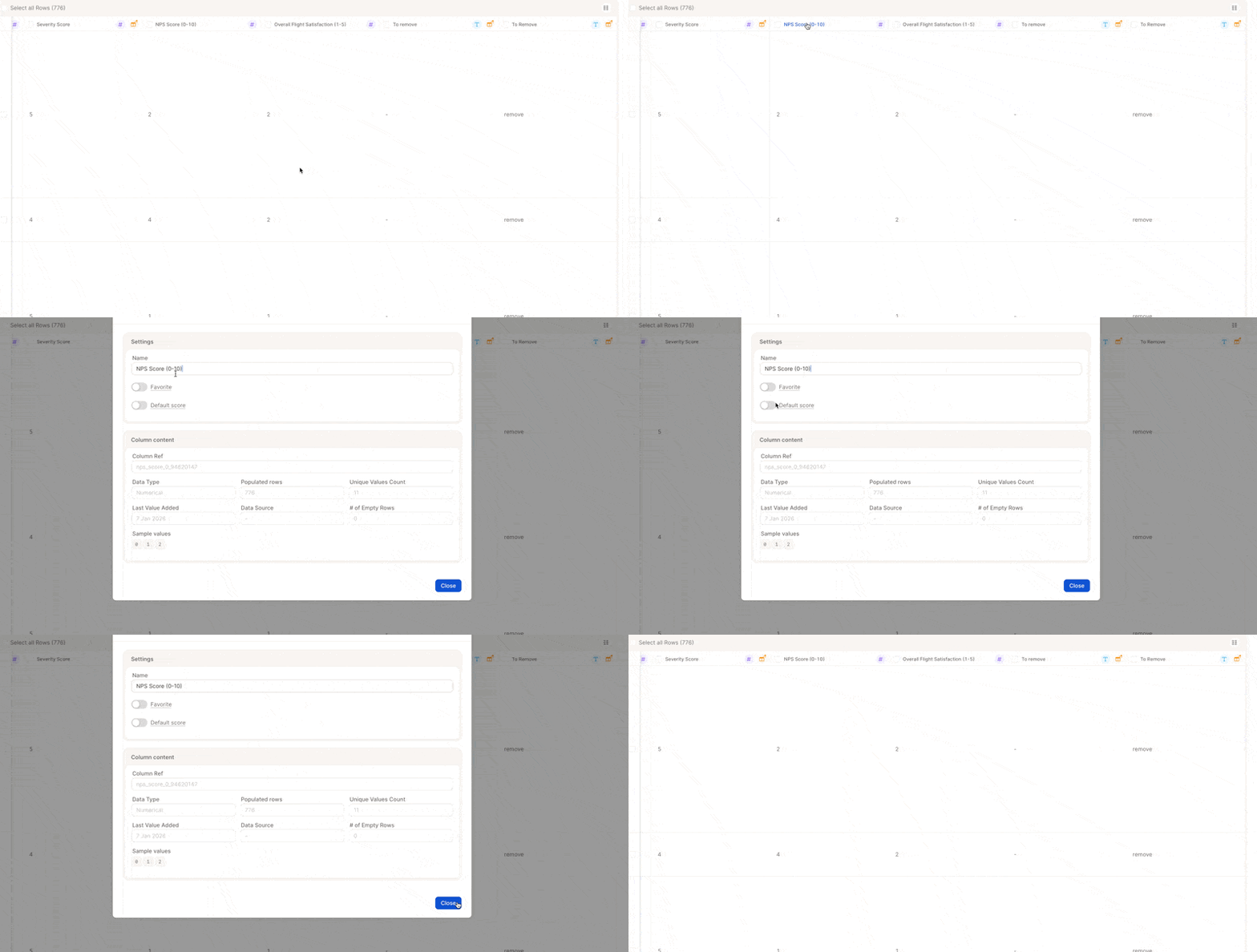
- Name — edit the column’s display name directly
- Favorite — pin this column to the top of dropdowns and filter menus for faster access
- Default score — set this column as the primary scoring reference across your project
- Column Ref — the internal ID
- Data Type — e.g. Numerical, Text
- Populated rows — how many rows have a value in this column
- Unique Values Count — number of distinct values
- Last Value Added — timestamp of the most recent entry
- Data Source — where the data originated
- # of Empty Rows — rows with no value in this column
- Sample values — a quick preview of actual entries
Favoriting and hiding columns
These features help you focus on relevant fields without permanently changing your dataset.Favorite columns
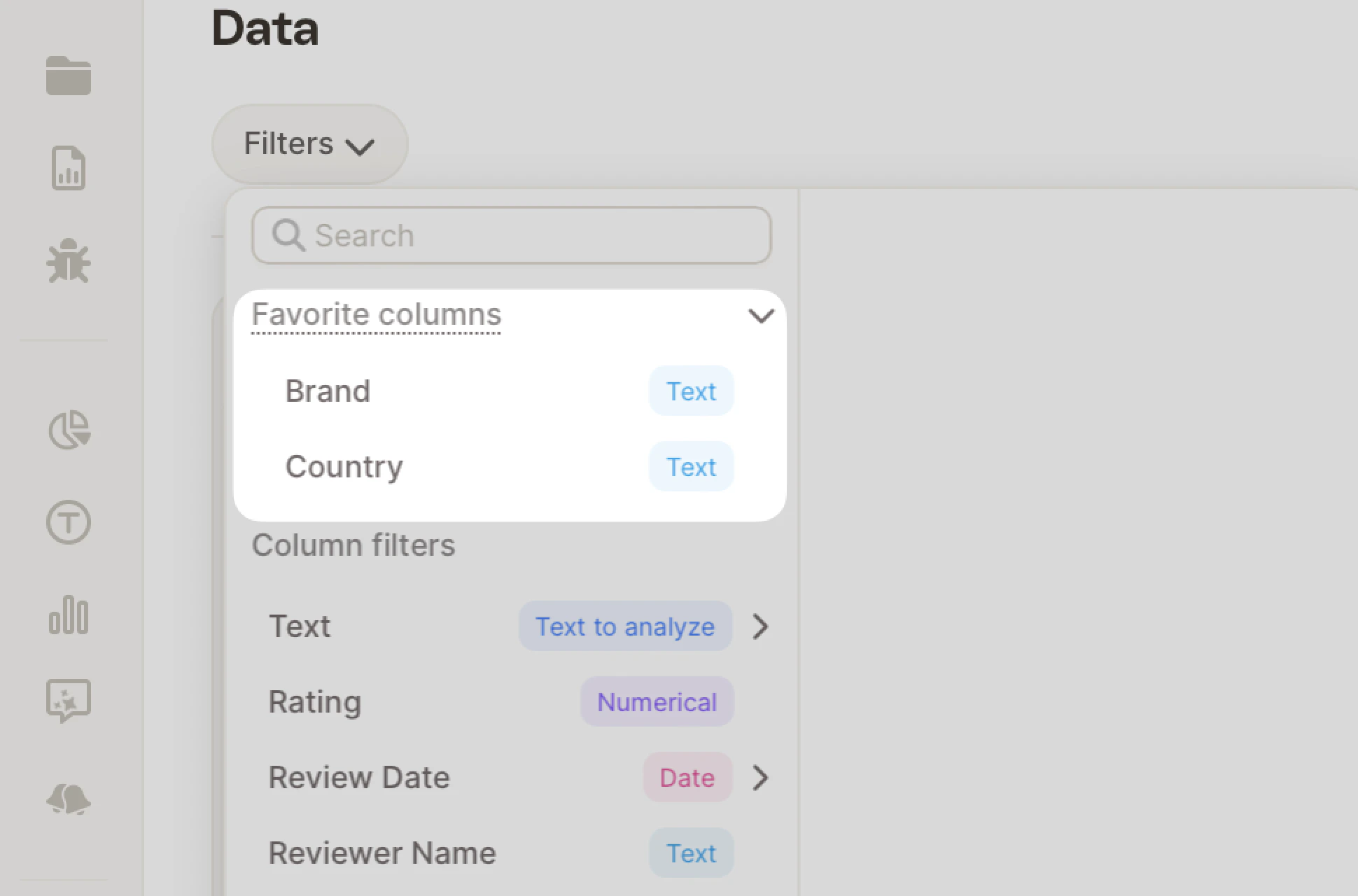
Mark a column as a favorite to pin it to the top of dropdown menus (e.g. when selecting filters), making it quicker to find and use. This is especially helpful when working with many columns.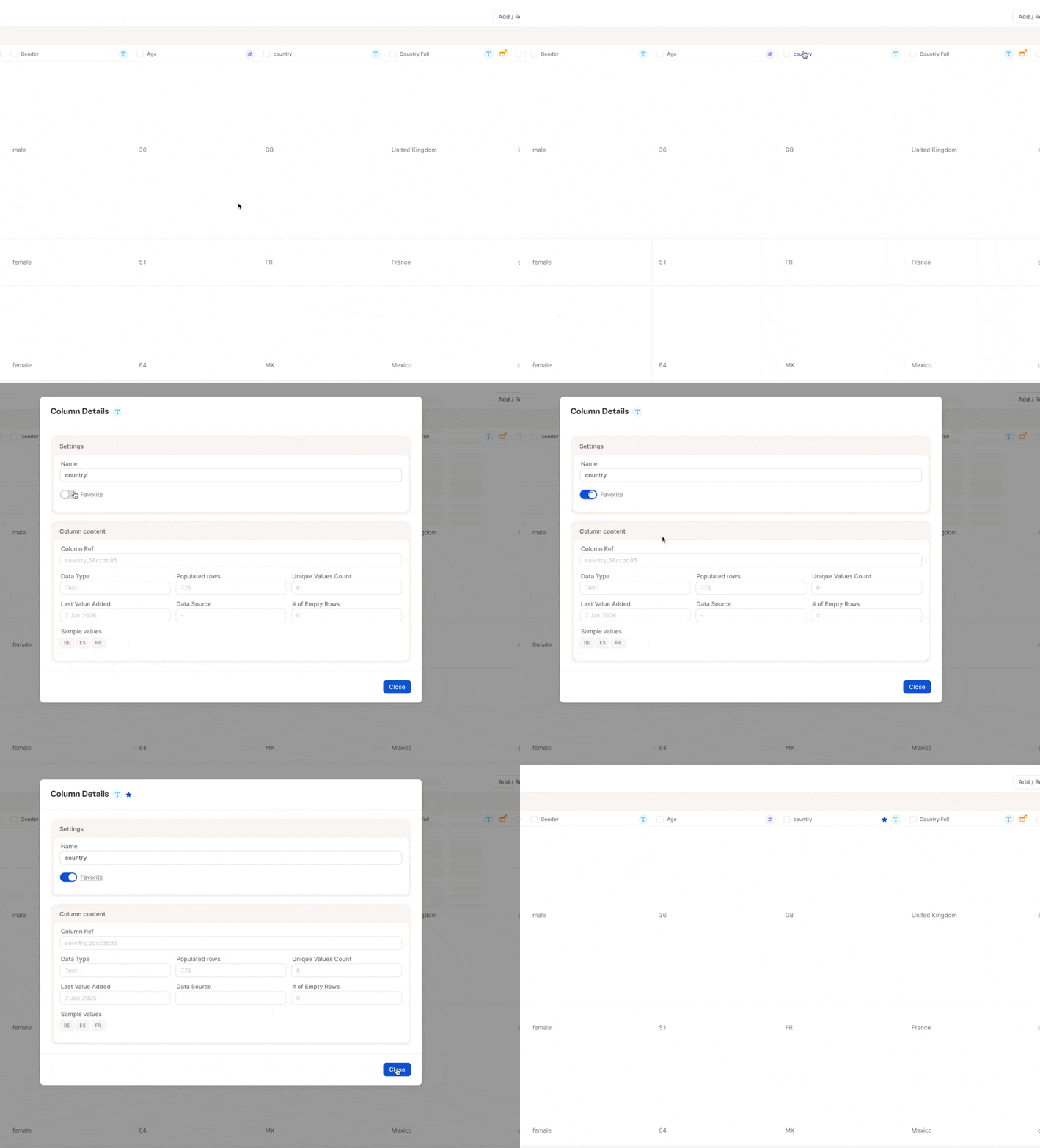
Hide columns
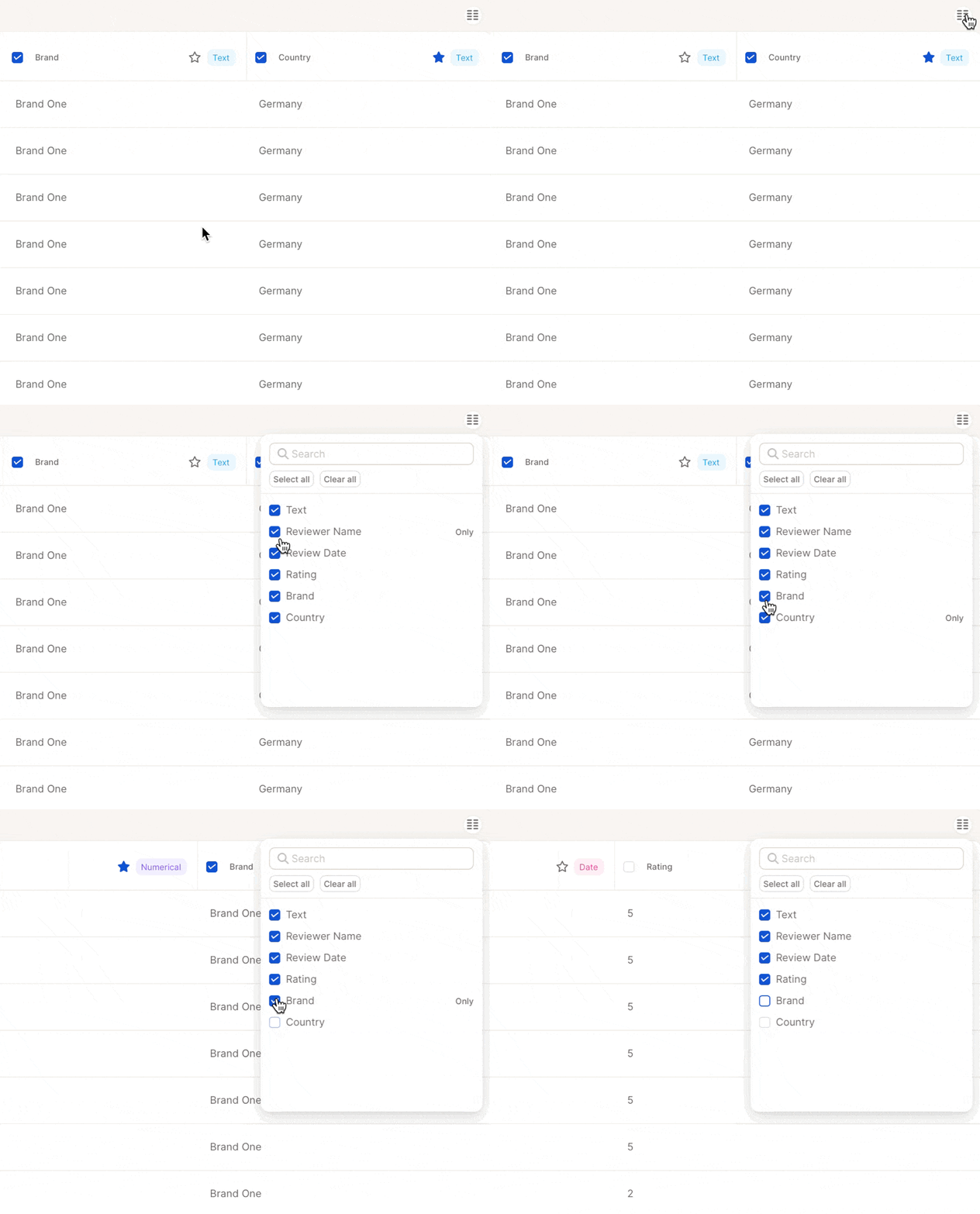
- Click Show/Hide Columns
- Uncheck any column you don’t want visible
- The table updates immediately
Editing text fields
You can edit responses or text rows directly from the table, which is helpful for fixing typos or clarifying entries.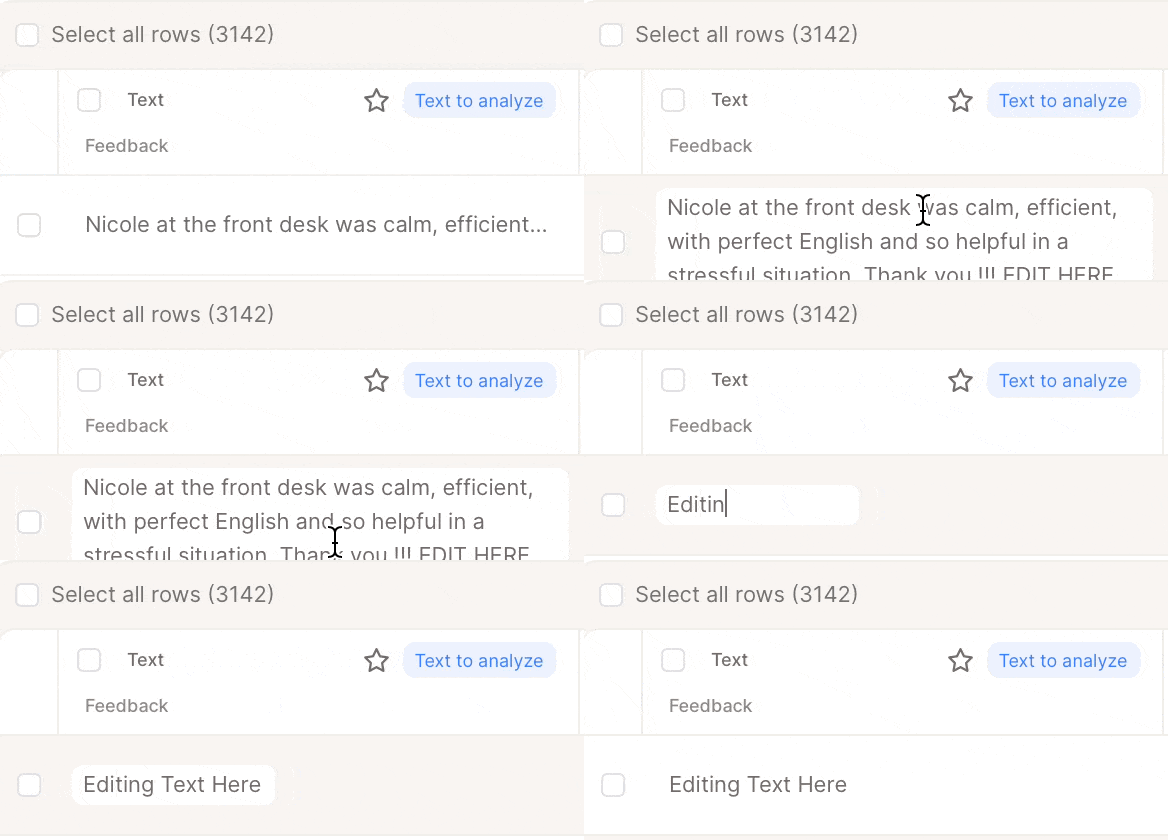
Each verbatim edit uses 1 credit, as Caplena reprocesses the entry to update insights like sentiment and topics.
Deleting rows and columns
Use this when you want to permanently remove data you no longer need.Delete rows
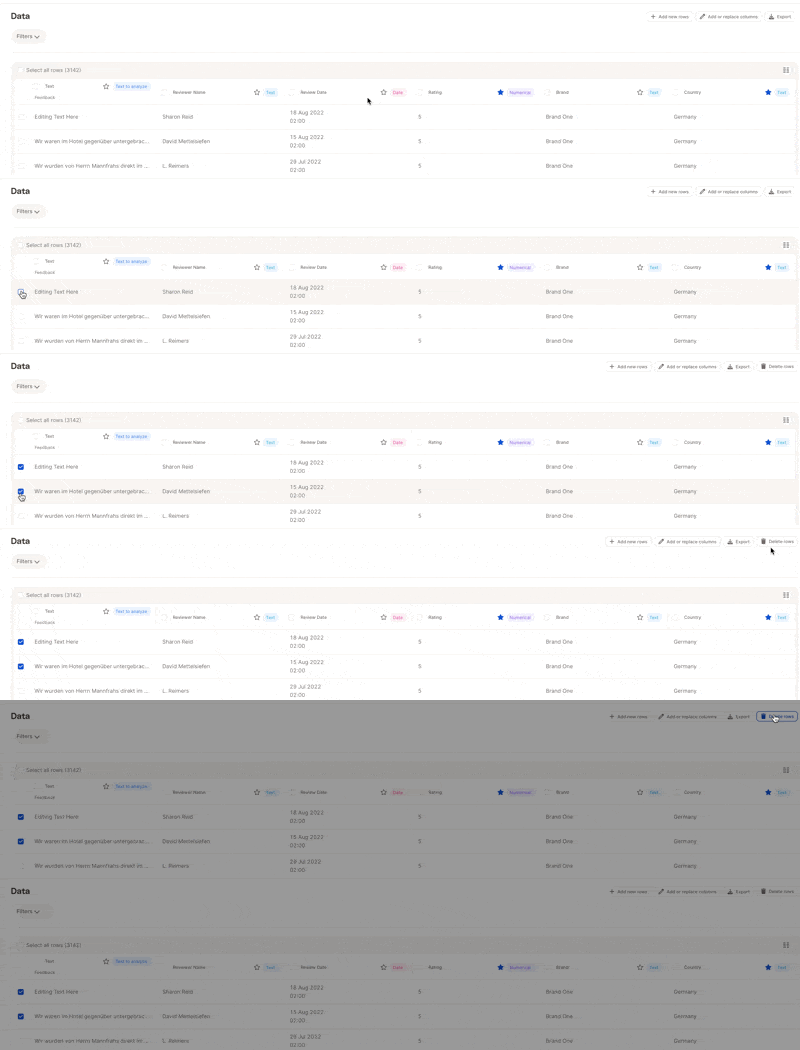
- Use the checkboxes to select rows
- Click Delete Rows in the toolbar
- Confirm deletion
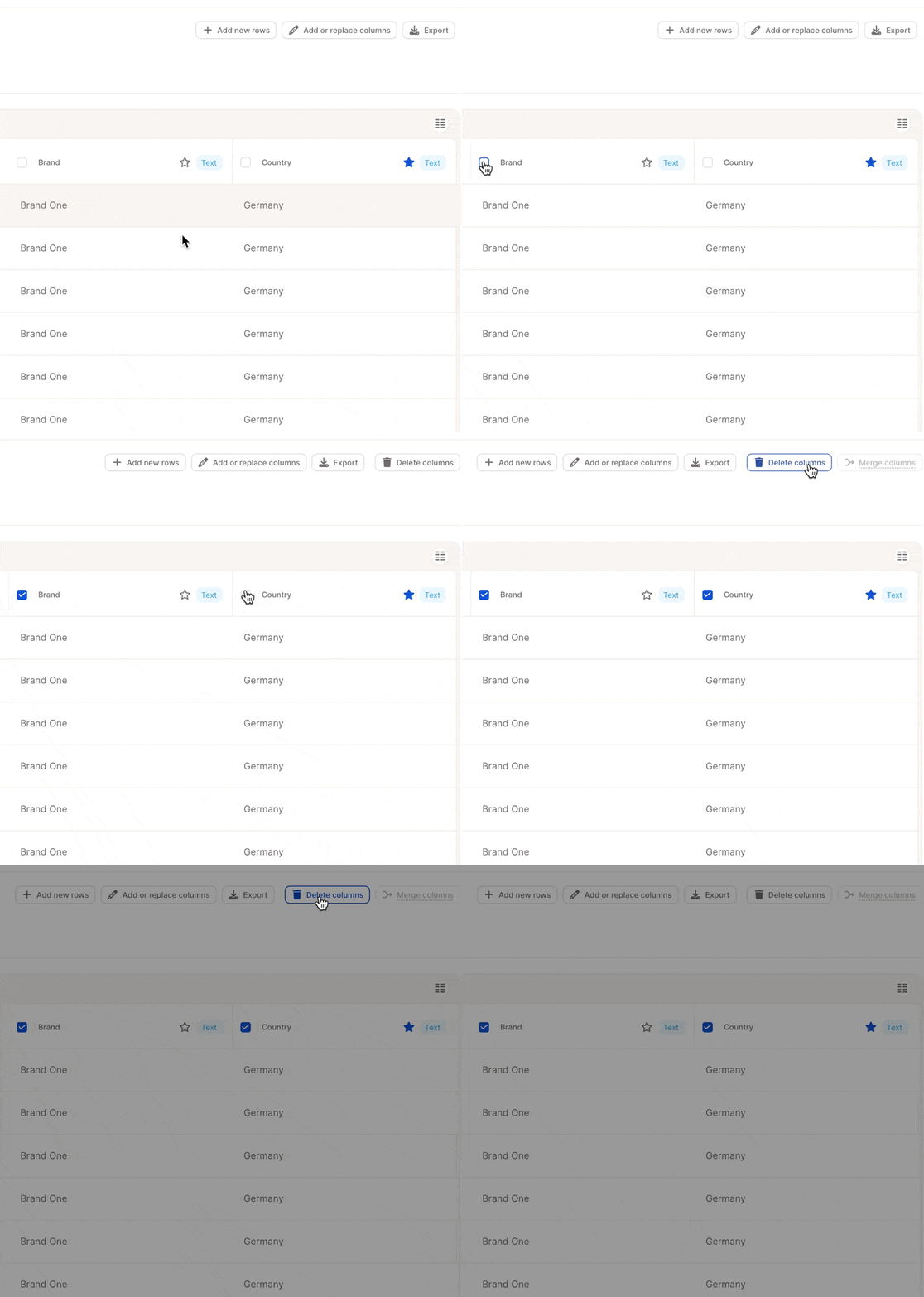
Delete columns
- Click Delete Columns
- Choose the column to remove
- Confirm the action
Filtering the table
Use filters to focus on a specific subset of data (e.g., only 5-star reviews or responses from a certain region)..gif)
Adding or replacing data
Keep your dataset up to date without having to re-upload everything from scratch.