Did you forget to include a column for analysis during your data upload? No worries — there are two ways to bring that column into your analysis using Smart Columns or Add & Replace.Documentation Index
Fetch the complete documentation index at: https://docs.caplena.com/llms.txt
Use this file to discover all available pages before exploring further.
Option 1: Using Add & Replace
If Smart Columns are not available or preferred, you can re-import the column using the Replace flow.Prepare your file
Include the unique identifier column (e.g., UUID, respondent ID) and the column(s) you forgot to include originally.
Match and add columns
Select the identifier column to match existing rows, then select the new column(s) to be added.
Option 2: Using a Smart Column (if included in your plan)
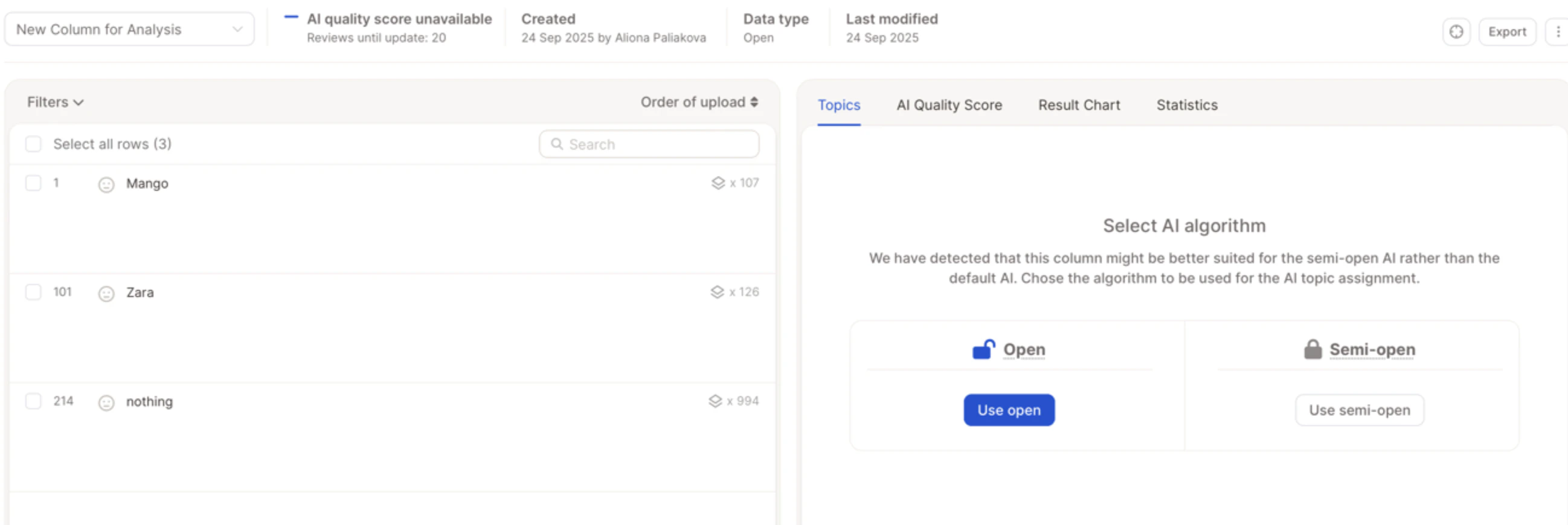
If you have Smart Columns enabled, you can turn an existing column into a Text to Analyze (TTA) column.Open Smart Columns
Go to your project and open the Smart Columns panel, then click Create Smart Column.
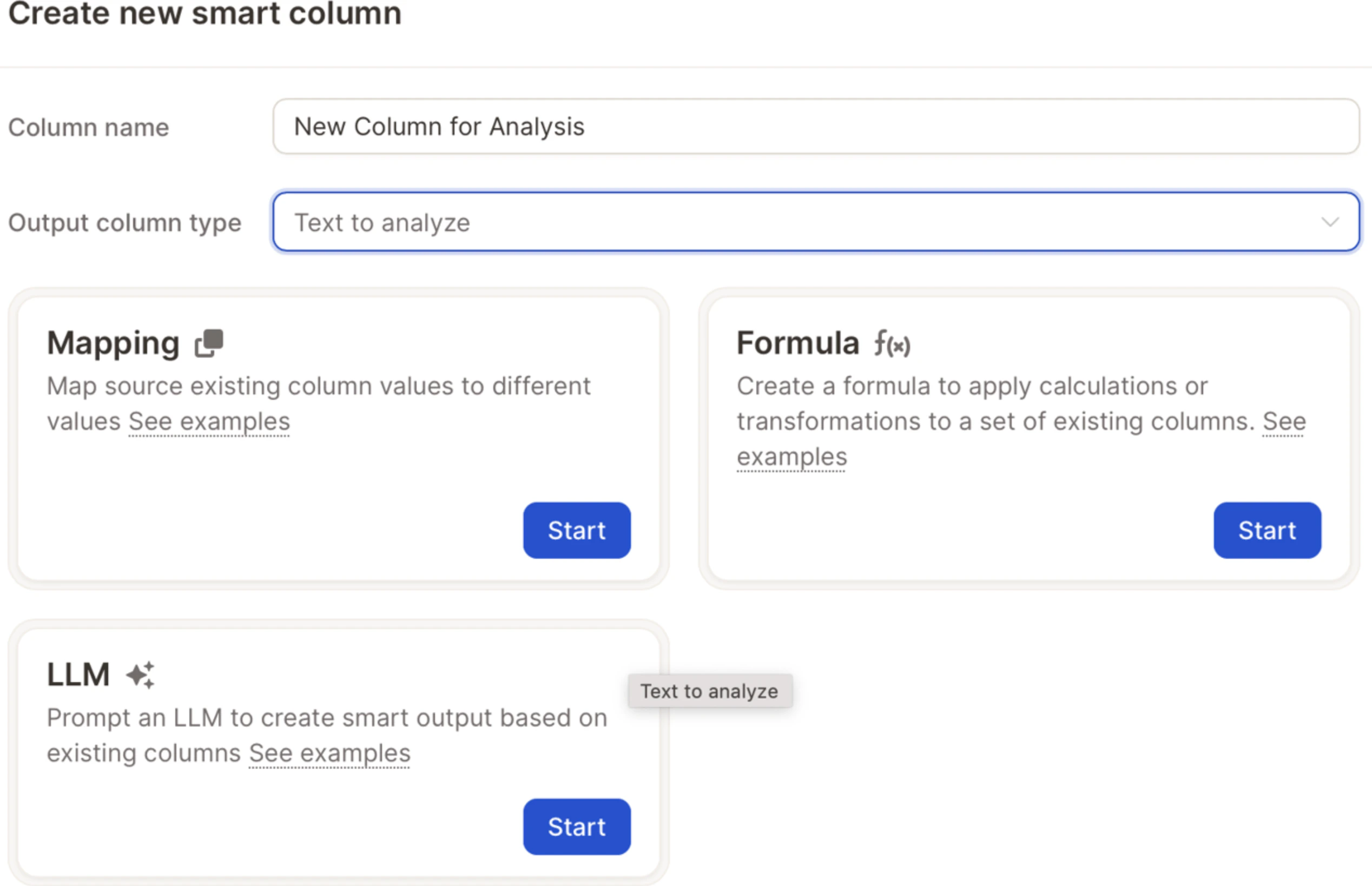
Choose Formula and Variable
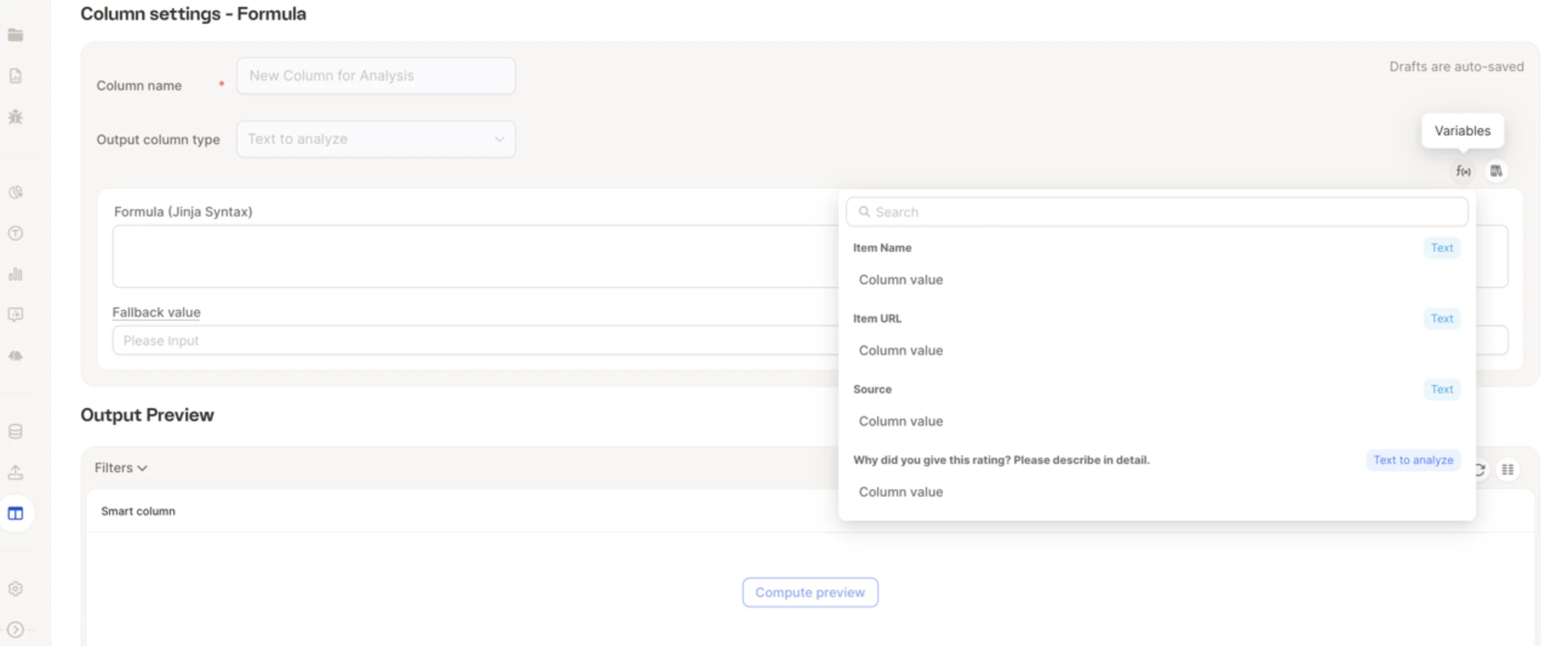
Choose Formula, click on Variable, and select the column you’d like to turn into a TTA field.