Caplena supports the Model Context Protocol (MCP), an open standard that lets you connect your Caplena projects directly to any MCP-compatible client. Once connected, you can ask questions about your feedback data in plain language, without opening Caplena at all. MCP works with a growing range of clients — Claude Desktop, Cursor, and others. The walkthrough below uses Claude Desktop as an example, but the same Caplena MCP URL works in any client that supports custom connectors.Documentation Index
Fetch the complete documentation index at: https://docs.caplena.com/llms.txt
Use this file to discover all available pages before exploring further.
What This Lets You Do
Instead of opening Caplena, building filters, and reading through charts, you just ask a question and get an answer. For example:- “What are the top complaints in my NPS project this week?”
- “How has sentiment changed over the past month in my support feedback project?”
- “Summarize the most common themes across my Q1 and Q2 projects.”
- “Get the top 3 issues in Germany, France and the US and create a 4-slide PowerPoint deck from this with our corporate template.”
- “Find app issues mentioned in the past 2 days and create a Jira ticket for every one of them.”
- “For each of the three strategic priorities outlined in the Strategy.docx file, create an executive summary of the voice of the customer related to the initiative, both qualitative and quantitative.”
- Stakeholders and non-analysts who use an MCP client but don’t work in Caplena day-to-day — they can get answers without needing to know how to navigate the platform.
- Combining Caplena data with other context — the client can look at your feedback data alongside a document, spreadsheet, or email in the same conversation.
Before You Start
- You have a Caplena account with at least one project set to Live.
- You have an MCP-compatible client installed — this guide uses Claude Desktop as the example.
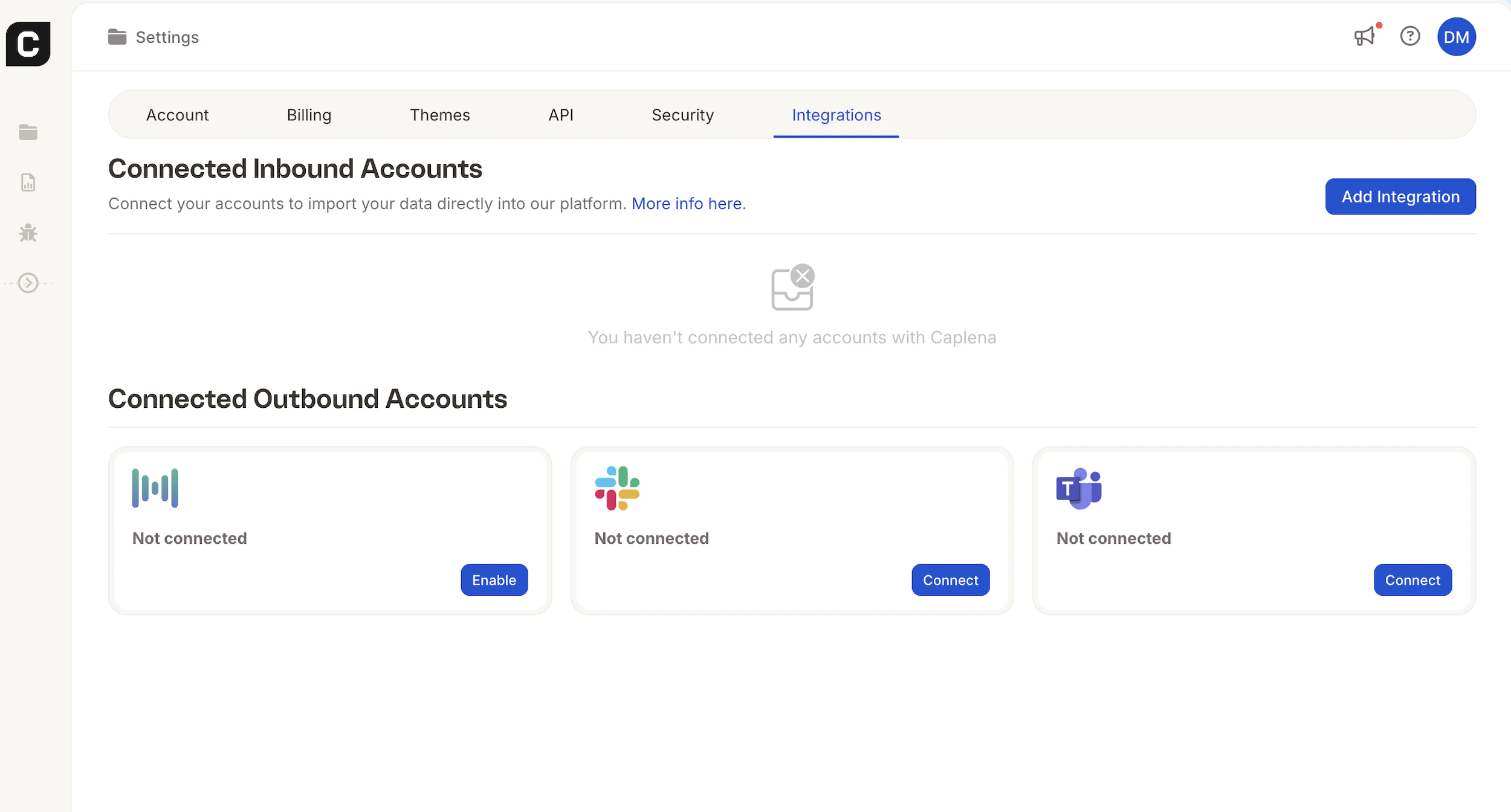
Step 1: Enable MCP in Caplena
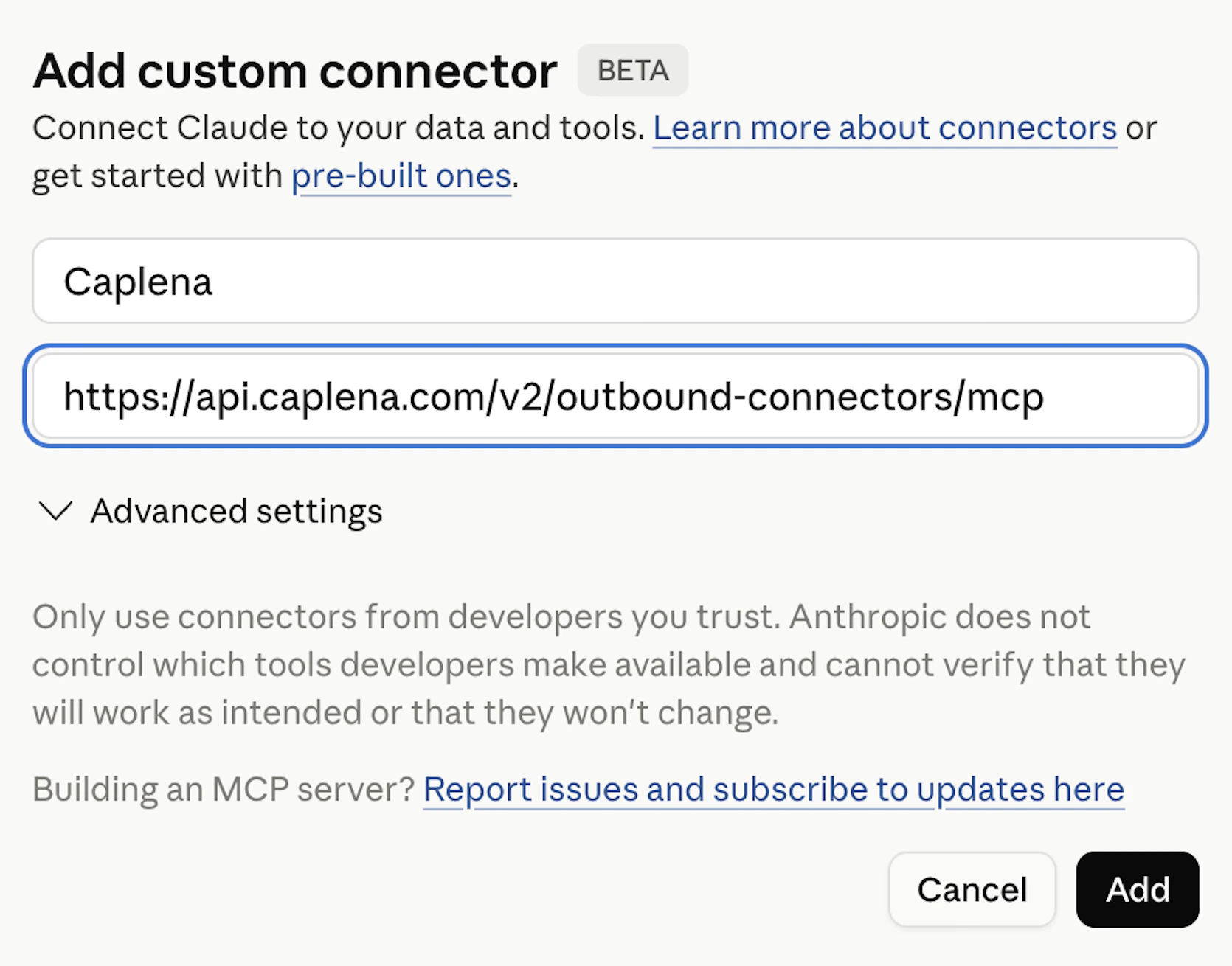
Step 2: Add Caplena as a Custom Connector
These steps use Claude Desktop as the example client. In another MCP client, add a custom connector or server using the same Caplena MCP URL.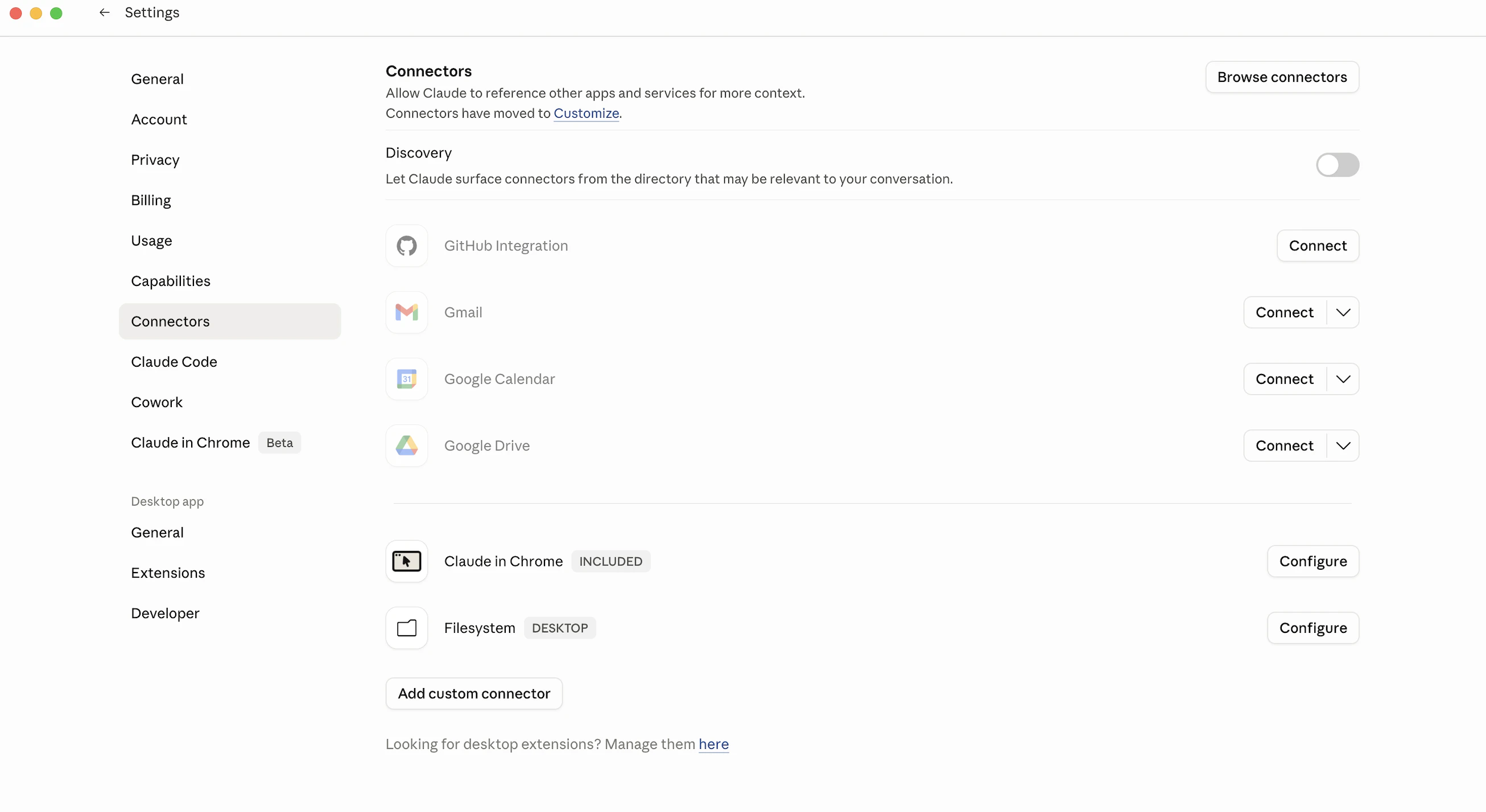
Step 3: Authorize the Connection
Sign in
You’ll be redirected to Caplena. If you’re not already logged in, you’ll be asked to sign in.
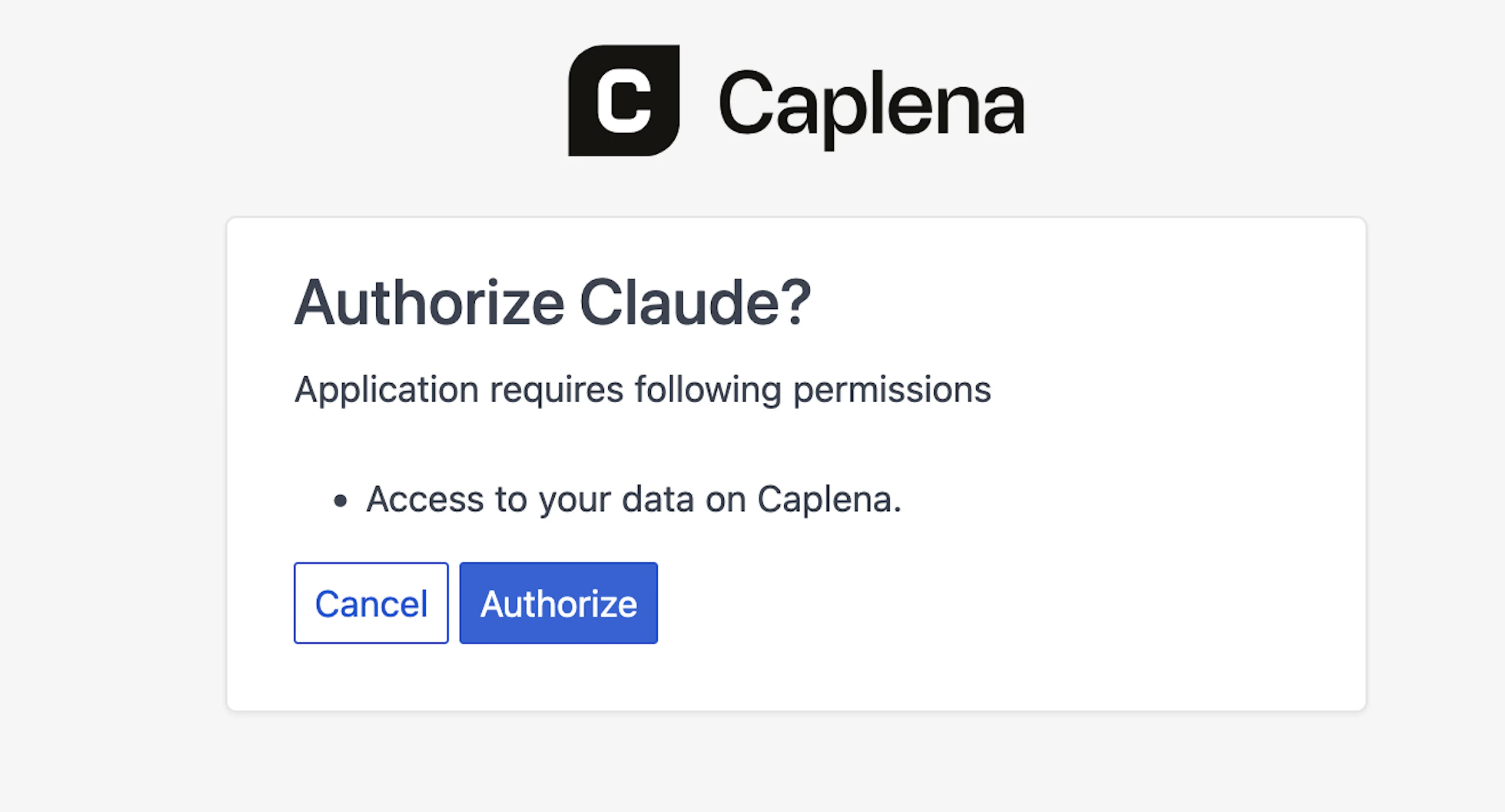
Authorize
An authorization screen appears asking you to grant the client access to your Caplena data. In Claude Desktop this reads Authorize Claude? — click Authorize.
Step 4: Start Querying Your Data
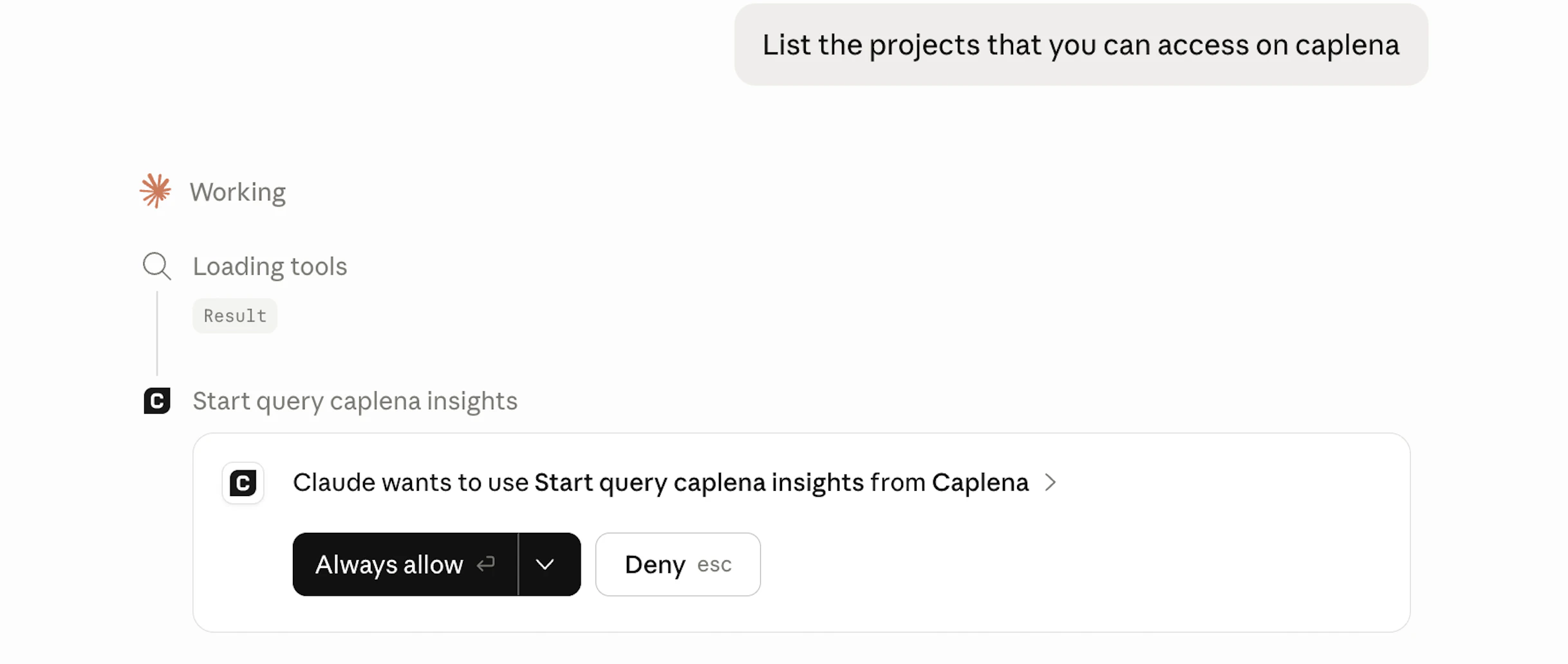
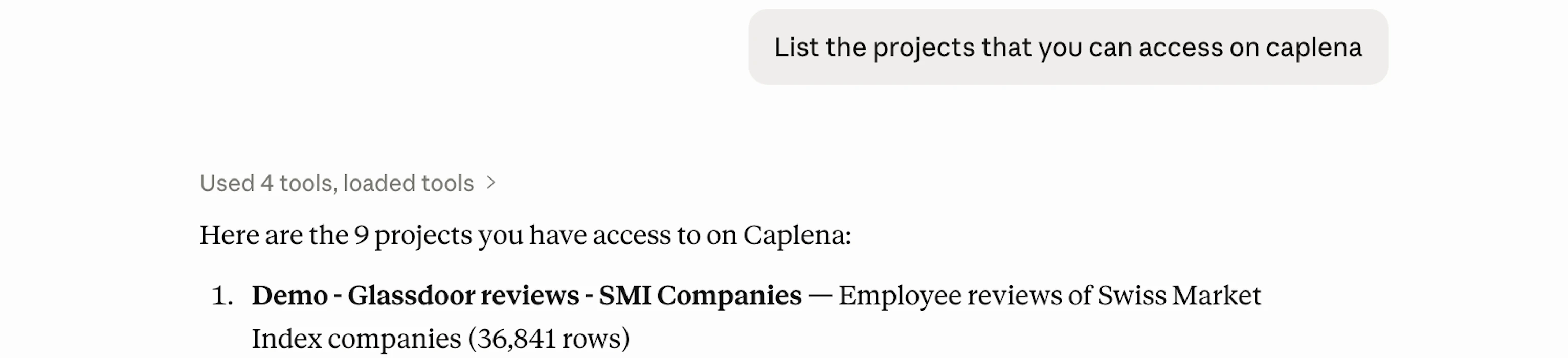
In your MCP client, try: “List the projects that you can access on Caplena.” The client will ask for your permission to use its Caplena tools. Grant access when prompted — in Claude Desktop, click Always allow (you may be asked twice: once to query Caplena, once to use the Retrieve tool).